Detection Per DeviceID
Configure XFF iRule and Trusted XFF
For the purposes of this lab we need many different IP addresses (so that ASM cannot detect multiple failed logins from the same IP address) but we only have one client in our lab setup. In order to do this we will use an iRule to inject an X-Forwarded-For (XFF) header with a random IP address and we will configure ASM to trust XFF headers. This will effectively “hide” the real IP address of the client from ASM and force it to detect the failed logins by some other method (DeviceID in this case).
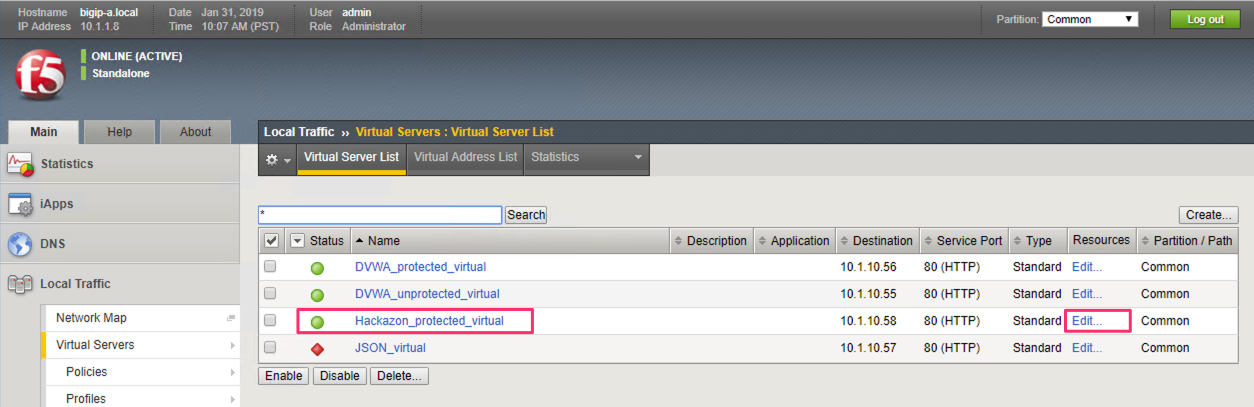
In the BIG-IP browse to Local Traffic >> Virtual Servers. Click Edit… in the Resources column for the Hackazon_protected_virtual virtual server.
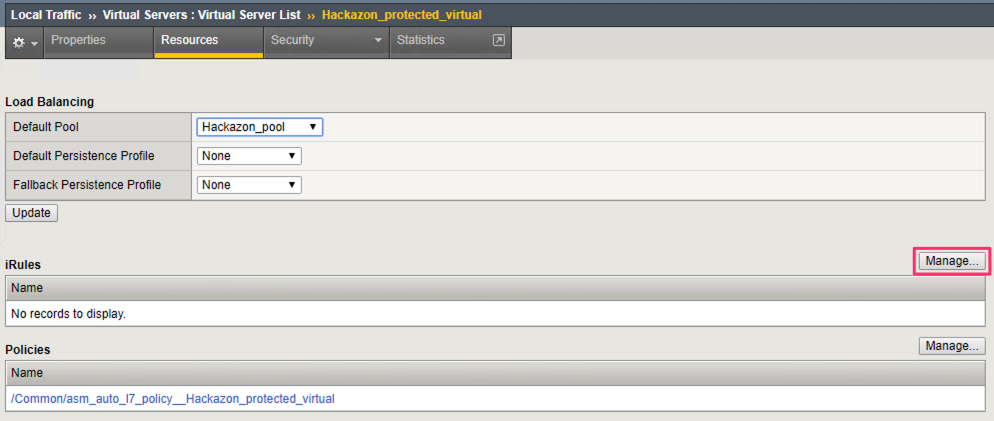
Click the Manage… button next to the iRules section.
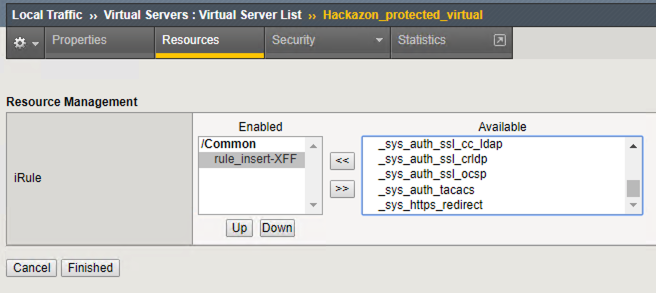
Add the rule_insert_XFF iRule to the Enabled list.
Hint
You will need to scroll down to the bottom of the Available section.
Click Finished.
Note
This iRule will now insert into every request XFF headers with random IP addresses.
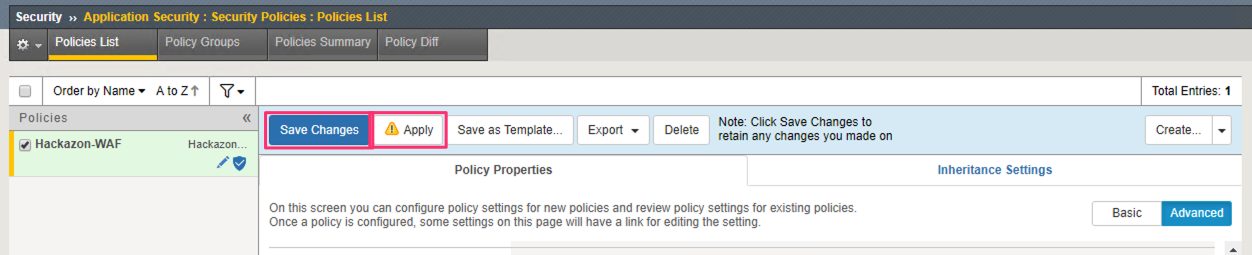
In the BIG-IP browse to Security >> Application Security >> Security Policies >> Policies List
Set the policy details to see Advanced settings. Then set Trust XFF Header to Enabled
Tip
Directly below the Trust XFF Header setting is Custom XFF Headers. Because we are using the standard XFF header name (X-Forwarded-For), we do not need to specify a Custom XFF Header. However, if you are using a non-standard XXF header name you can specify it here and ASM will act on this header. (i.e. Akamai uses the True-Client-IP header name to insert the original requesting IP address.)
Warning
Click Save Changes and then Apply to save and apply these changes.
To verify that everything is configured correctly, return to the Hackazon login screen and submit some username and password.
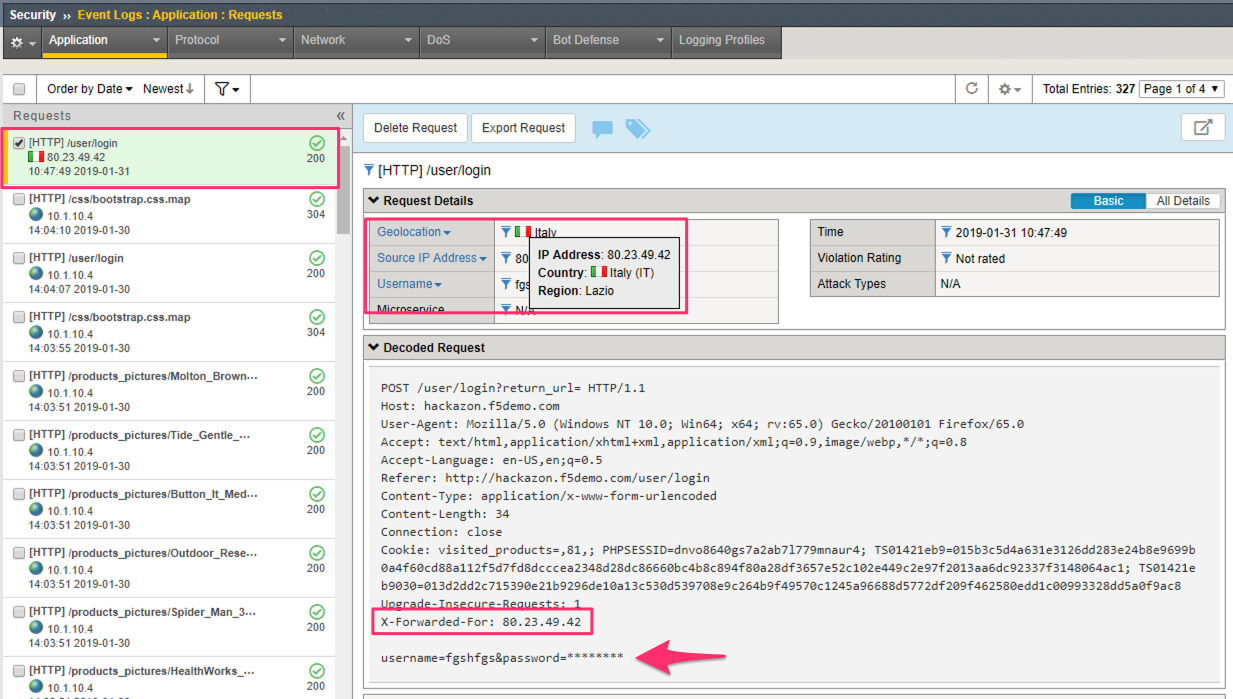
Then check the ASM Request Log and you should see a request from some random IP address.
Note the country flag and geolocation information about the IP address and the XFF header in the request.
Tip
Why is the password parameter value masked out in the request log?

Configure Brute Force DeviceID Detection
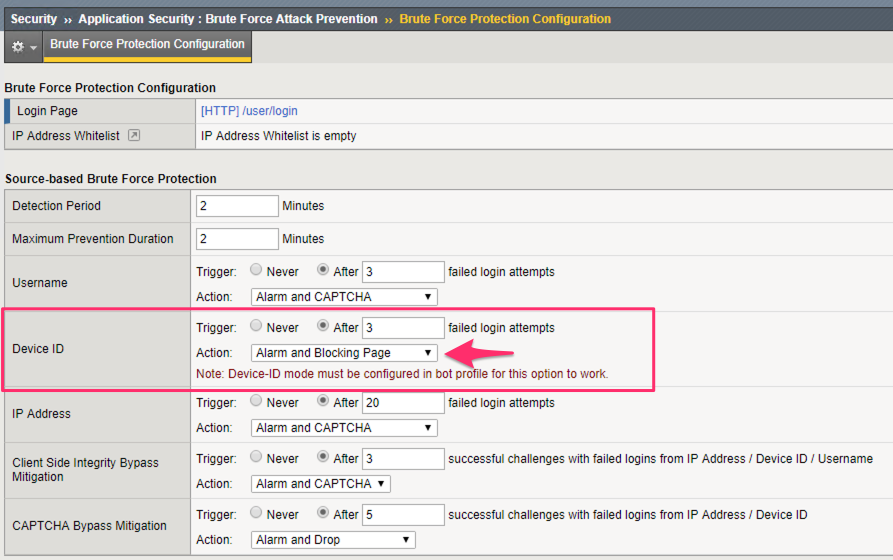
In the BIG-IP browse to Security >> Application Security >> Brute Force Attack Prevention and select the /user/login page.
Configure the DeviceID detection to trigger after 3 failed logins and change the Action to Alarm and Blocking Page.
Click Save.
Warning
Click Apply Policy to make these changes effective in the policy.

Attempt invalid logins
In the browser, return to the login page URL at http://hackzazon.f5demo.com/user/login.
Try to login with various usernames and passwords.
Important
Do NOT use the same username twice.
After at least 4 failed login attempts you should get the block page.
Review ASM Request log
In the BIG-IP browse to the ASM Request log at Security >> Event Logs >> Application >> Requests.
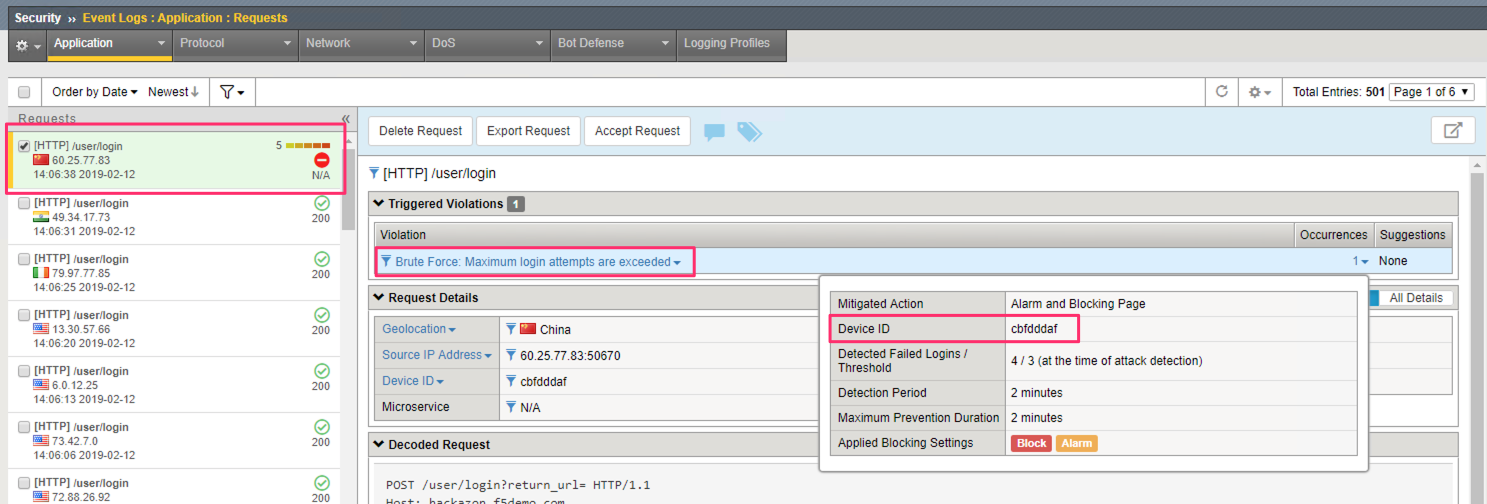
Look through the request log for the most recent illegal request to /user/login.
Note
What Violation was detected for this request?
What other details about this request are visible when you select the “occurrence”?
What indicator is there that this Brute Force violation was detected by DeviceID rather than by username or IP address?