Validating DataSafe Configuration
With the DataSafe profile configured to protect the Hackazon login page, we will now validate each of the components and review how they protect against MITB malware credential theft.
Validating Obfuscation and Decoys
Obfuscation
IN the browser, return to the Hackazon login page at hackazon.f5demo.com.
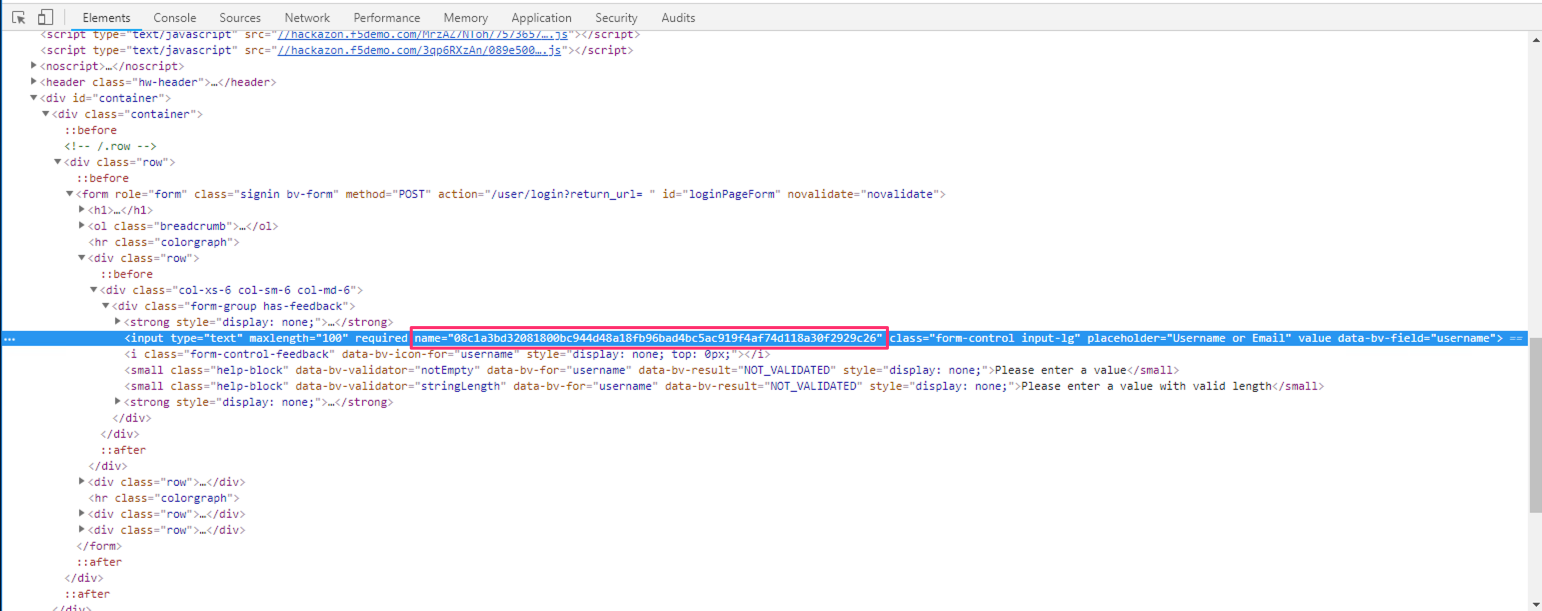
Right click on the username field and choose Inspect.
Notice that the name of the username field is now a long cryptic string. Also, notice that this name attribute in changing every few seconds. Inspect the password field and notice the same behavior.
This is the Obfuscation feature of DataSafe. By obfuscating the field name, it makes it MUCH more difficult for injected javascript to be able to grab the value of the form fields from the DOM. Imagine you are a malware developer; what field name would you try to grab the username or password from?
Also, notice that the username and password fields no longer have an “id” attribute. This is the “Remove element IDs” feature. Because most form fields have the same value for “name” and “id”, it would not be of much value to obfuscate the field name if the field can just be identified by the “id” attribute.
Decoy Inputs
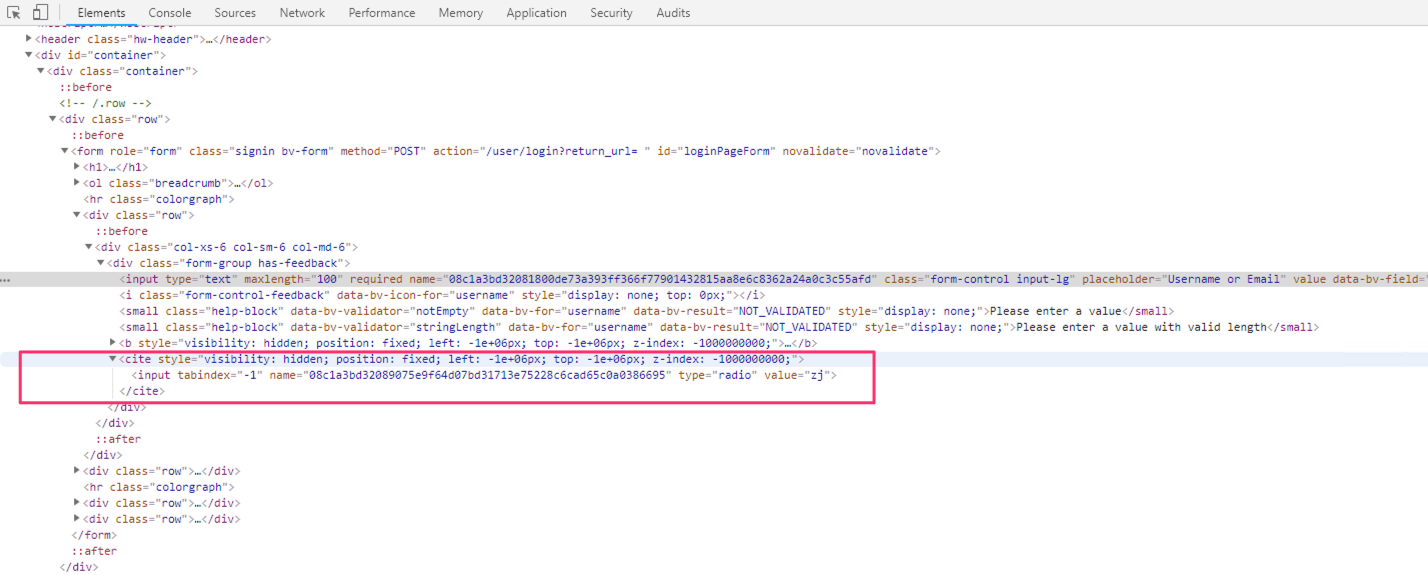
Watch the dev tools pane for several seconds. You should see additional objects added and removed from the DOM. When you see one of these new lines, expand the object to see it’s details.
This is an example of a decoy field. MITB malware may try to determine username and password fields simply by identifying them as the first and second fields in the form. By enabling decoy fields, the number and order of the fields in the DOM are constantly changing making it MUCH more difficult for malware to identify the proper fields to steal.
Validating Encryption
Warning
DO NOT click Sign In yet.
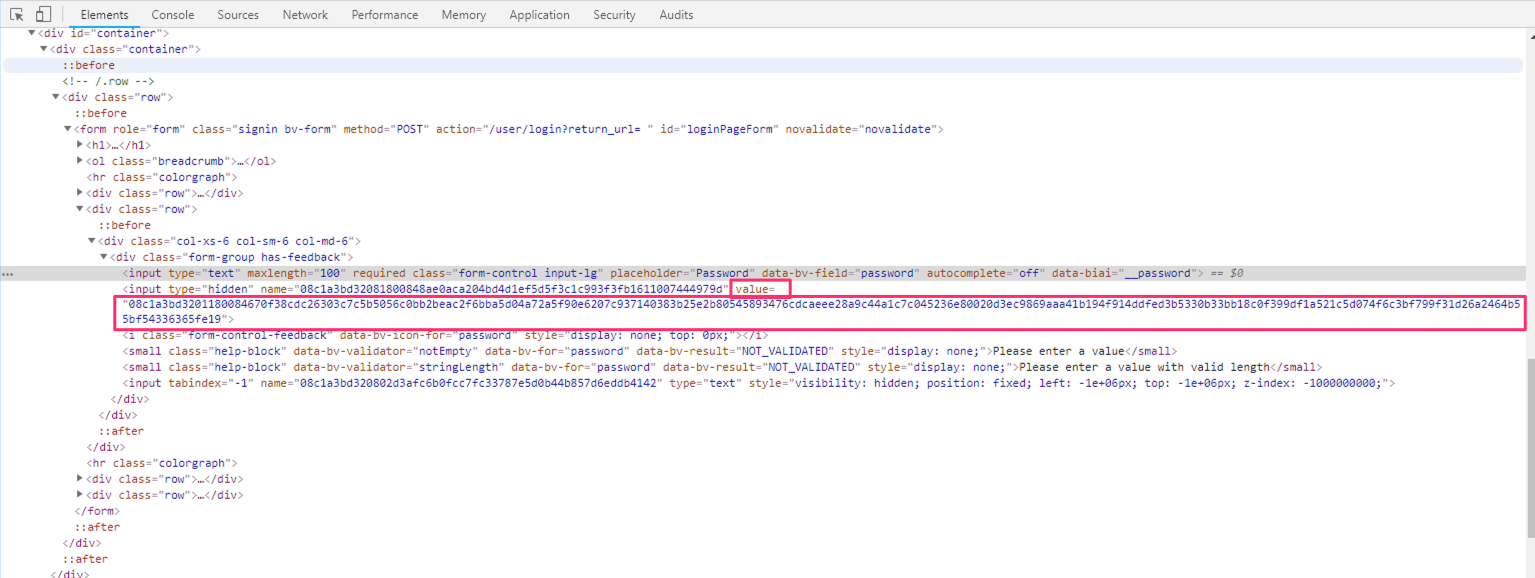
- In the browser pane, enter a username into the login form. As you enter a password, watch the dev tools pane.
Notice that the value of the field is a long encrypted string. This is the “Real Time Encryption” feature.
Important
This is the primary feature of DataSafe. This feature encrypts the user’s password as they type it. Any attempts by malware to grab this value will only result in this encrypted string. This is obviously NOT the actual password and useless to the attacker. Additionally, part of this encryption includes a timestamp, preventing the replay of encrypted passwords.
- In the dev tools pane, switch to the Network tab and select Preserve Log.

- In the devtools pane, scroll up to the first POST request to /login?return_url= and select it.
- In the Headers section scroll down to the Form Data
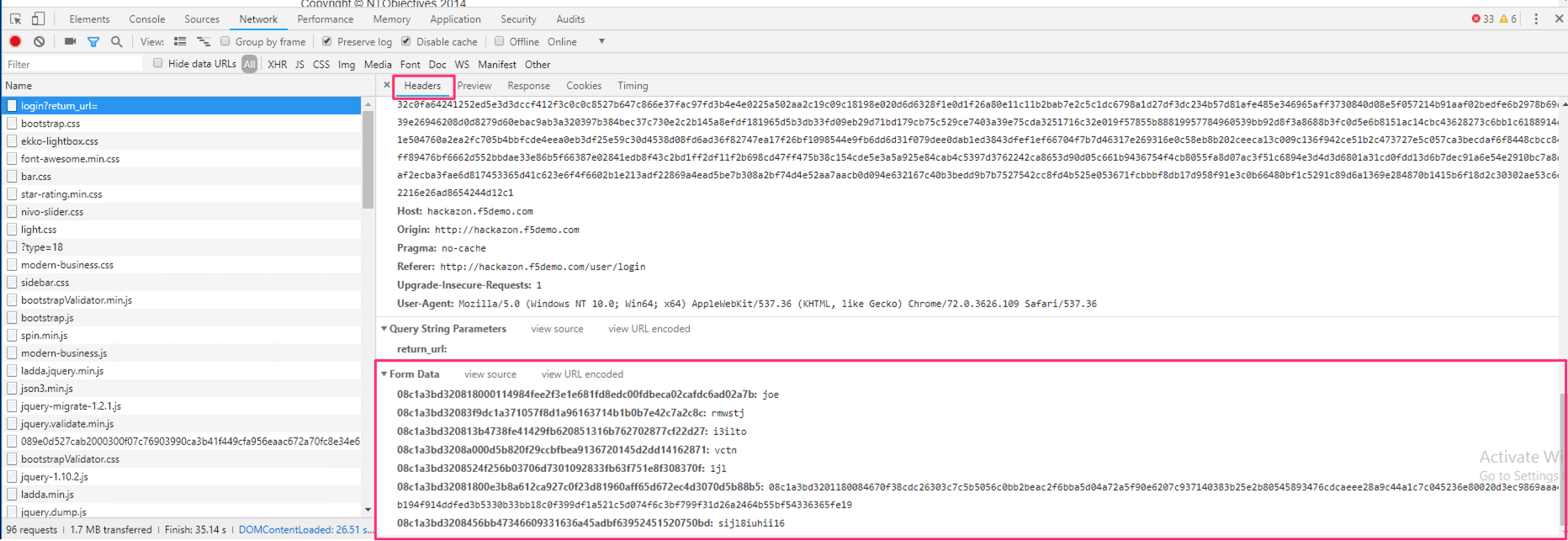
Here you can see that the password you entered is no longer visible in clear text. If this POST had been copied by a malware POST grabber and sent to a C&C server this data would be useless to the hacker.