Configuring Threat Campaigns
In this exercise we will review the various components of configuring and maintaining Threat Campaigns.
Reviewing Threat Campaign Details
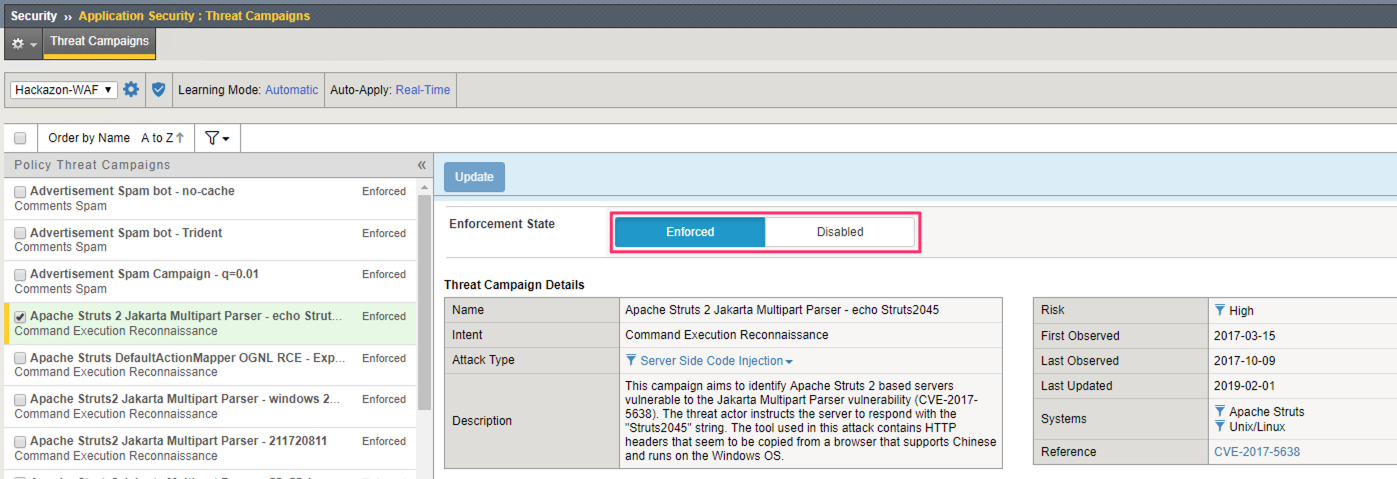
In the BIG-IP browse to the Threat Campaigns screen at Security >> Application Security >> Threat Campaigns.
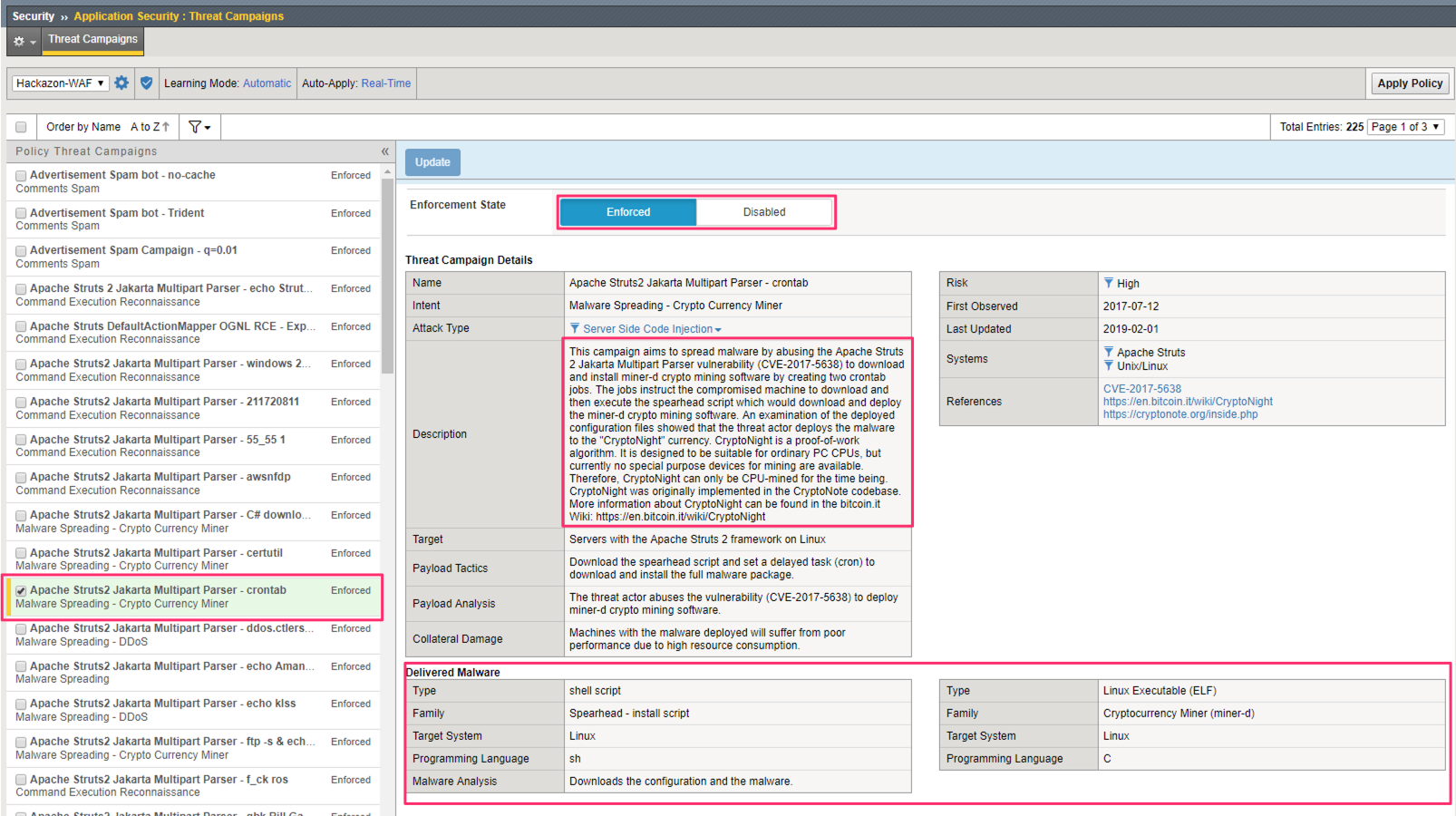
From the list of threat campaigns, select Apache Struts2 Jakarta Multipart Parser - crontab.
Review the details of this threat campaign including the Description and Delivered Malware.
Also, notice the ability to disable or enforce individual threat campaigns.
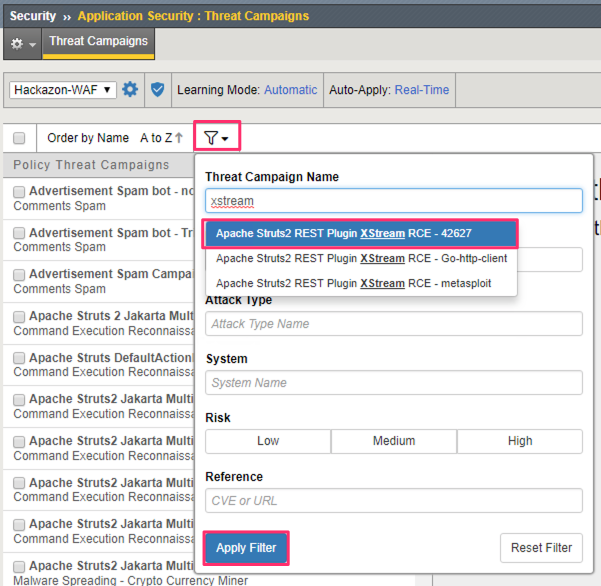
You can also, search the list of threat campaigns for a specific entry.
Select the filter icon and type “xstream” into the Threat Campaign Name field. Select the first result and click Apply Filter.
Review the details of this threat campaign.
Threat Campaign Updates
Due to the dynamic nature of the threat landscape Threat Campaigns need to be kept up-to-date. These updates come multiple times per week and sometimes even multiple times per day.
This is done via the Live Update feature.
In the BIG-IP, browse to System >> Software Management >> Live Update. Select Threat Campaigns.
Review the Live Update screen for Threat Campaigns. Note the ability to Disable automatic updates, Schedule updates for specific days and times, or install updates in Real Time.
The default is to automatically install updates in Real Time. In which case, updates are downloaded and installed as they become available.
Also, update files can be manually downloaded from https://downloads.f5.com and uploaded to the BIG-IP. Manually uploaded files are NOT automatically installed.
Note
Because of connectivity limitations between this lab environment and the F5 Update Servers, the Live Update feature will not work in this lab. In order for Live Update to work in a production environment the BIG-IP must have outbound access to https://downlods.f5.com.

Threat Campaign Blocking
The F5 Advanced WAF administrator can control the blocking of Threat Campaigns in two locations; in Blocking Settings for the policy as a whole, and in Threat Campaigns to control individual threat campaign signatures.
Recall, from reviewing the Threat Campaign details previously, that individual threat campaign signatures can be Enforced or Disabled.
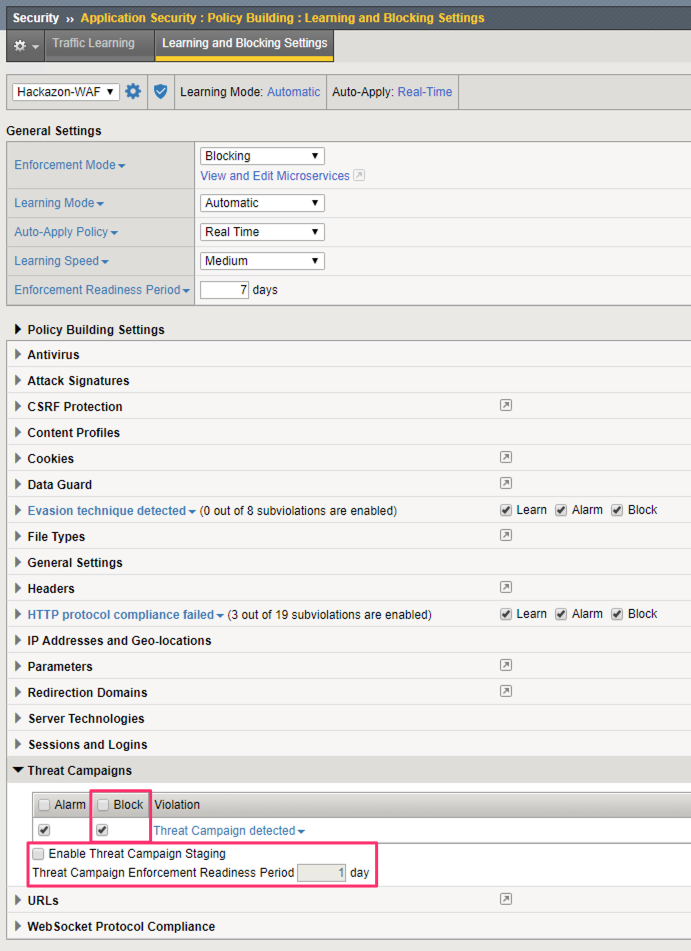
In the BIG-IP browse to Security >> Application Security >> Policy Building >> Learning and Blocking Settings.
Expand the Threat Campaigns section.
Here you can control blocking and staging of Threat Campaigns for this WAF policy.
If Threat Campaign Staging is enabled, new and updated threat campaign signatures will not block during the enforcement readiness period (one day, by default).
Important
It is best practice and highly recommended that you leave Threat Campaign blocking enabled. Because threat campaign signatures are very specific to current, in-the-wild attacks there is minimal chance for false positives. Requests that match Threat Campaign signatures are inherently malicious.